
Introducing OpenSilver 3.3
Blazor Components Now Run Directly Inside XAML Applications
TL;DR
- Blazor components now work inside XAML – Drop in DevExpress, Syncfusion, MudBlazor, Radzen, or any Blazor component
- No bridges or wrappers – Both render to DOM, and they share the same runtime
- Your architecture stays the same – ViewModels, MVVM, data binding all work unchanged
- One codebase, every platform – Web (WebAssembly), iOS, Android, Windows, macOS, and Linux
- Modernize WPF apps incrementally – Replace legacy controls one at a time without rewriting
- Already in production – Cegid integrated DevExpress Blazor RichEdit in their XAML application
- Also in 3.3: .NET 10 support, Responsive markup extension, major WPF compatibility additions
- Free and open-source – MIT license, enterprise-ready
January 27, 2026
What if you could drop a MudBlazor data grid, a DevExpress rich text editor, or any Blazor component directly into your XAML application?
With OpenSilver 3.3, you can. No JavaScript bridges. No interop wrappers. Blazor components run directly inside your XAML visual tree, sharing the same DOM and the same runtime.
<StackPanel>
    <TextBlock Text="Customer Details" Style="{StaticResource HeaderStyle}"/>
    <razor:RazorComponent>
        @using DevExpress.Blazor
        <DxGrid Data="{Binding Customers, Type=IQueryable<Customer>}">
            <Columns>
                <DxGridDataColumn FieldName="Name"/>
                <DxGridDataColumn FieldName="Email"/>
                <DxGridDataColumn FieldName="Status"/>
            </Columns>
        </DxGrid>
    </razor:RazorComponent>
</StackPanel>
That’s a DevExpress Blazor grid, embedded in XAML, bound to your ViewModel. Notice the `Type` attribute in the binding – this tells OpenSilver how to pass the data to the Blazor component. Your ViewModel doesn’t change. Your architecture doesn’t change. You just gained access to the entire Blazor component ecosystem.
And because OpenSilver runs on WebAssembly for browsers and .NET MAUI Hybrid for native apps, the same code deploys to Web, iOS, Android, Windows, macOS, and Linux. Your Blazor components come along for the ride.
New to OpenSilver? OpenSilver is a free, open-source framework that lets you build web applications using C# and XAML (the same technologies as WPF). Your code compiles to WebAssembly and runs in any modern browser. It’s used by enterprises worldwide to modernize legacy WPF, Silverlight, and LightSwitch applications, and to build new cross-platform business apps with a single codebase. Learn more →
The Best of Both Worlds
If you’ve worked with XAML, you know its strengths: powerful layouts, deep data binding, styles, templates, and a clean separation between UI and logic through MVVM.
If you’ve worked with Blazor, you know its strength: an enormous ecosystem of modern, feature-rich components. Data grids with built-in filtering, sorting, grouping, and export. Rich text editors that handle Word documents. Charts, schedulers, date pickers, and more.
Until now, you had to choose one or the other.
OpenSilver 3.3 removes that choice. Use XAML for what it does best. Drop in Blazor components where you need them. They work together seamlessly because, under the hood, both render to the same HTML DOM.
“Why not just use Blazor?”
Fair question. Blazor is great if you’re starting fresh with Razor/HTML/CSS. OpenSilver makes sense when:
- You’re migrating – Your WPF/Silverlight code actually runs. ViewModels, converters, styles, custom controls come with you.
- Your team knows XAML – Layout, binding, templates, MVVM patterns transfer directly. No retraining.
- You want a visual designer – Drag-and-drop in VS, VS Code, or online at XAML.io.
With OpenSilver 3.3, you get both: XAML where it fits, Blazor components where they’re better.
Two Ways to Integrate
Option 1: Write Razor Inline in Your XAML
The simplest approach: write Razor markup directly inside your XAML files within `<RazorComponent>` tags.
<UserControl
    xmlns="http://schemas.microsoft.com/winfx/2006/xaml/presentation"
    xmlns:razor="clr-namespace:OpenSilver.Blazor;assembly=OpenSilver.Blazor">

    <Grid RowDefinitions="Auto, *">

        <!-- Standard XAML -->
        <TextBlock Text="{Binding PageTitle}" FontSize="24" FontWeight="Bold"/>

        <!-- Blazor component with XAML binding -->
        <razor:RazorComponent Grid.Row="1">
            @using Radzen.Blazor
            <RadzenDataGrid Data="{Binding Orders, Type=IEnumerable<Order>}"
                            AllowFiltering="true"
                            AllowSorting="true"
                            AllowPaging="true"
                            PageSize="20">
                <Columns>
                    <RadzenDataGridColumn Property="OrderId" Title="Order #"/>
                    <RadzenDataGridColumn Property="CustomerName" Title="Customer"/>
                    <RadzenDataGridColumn Property="Total" Title="Total" FormatString="{0:C}"/>
                    <RadzenDataGridColumn Property="Status" Title="Status"/>
                </Columns>
            </RadzenDataGrid>
        </razor:RazorComponent>
    </Grid>
</UserControl>
Notice:
- The Radzen grid sits inside standard XAML layout (
Grid.Row="1") - The
Dataproperty uses XAML{Binding}syntax to connect to your ViewModel - Filtering, sorting, and paging come built-in
- The Radzen grid sits inside standard XAML layout (
Your ViewModel stays exactly as it was:
public class OrdersViewModel : ViewModelBase
{
    public string PageTitle => "Recent Orders";
    public IEnumerable<Order> Orders { get; set; }
}
The ViewModel has no idea that Blazor is rendering part of the UI.
Option 2: Reference Separate .razor Files
For more complex Blazor components, or when you want better separation, create standard .razor files and reference them from XAML:
CustomerEditor.razor:
@using MudBlazor

<MudCard>
    <MudCardContent>
        <MudTextField @bind-Value="Name" Label="Customer Name" Variant="Variant.Outlined"/>
        <MudTextField @bind-Value="Email" Label="Email" Variant="Variant.Outlined"/>
        <MudSelect @bind-Value="Status" Label="Status">
            <MudSelectItem Value="@("Active")">Active</MudSelectItem>
            <MudSelectItem Value="@("Inactive")">Inactive</MudSelectItem>
        </MudSelect>
    </MudCardContent>
    <MudCardActions>
        <MudButton Variant="Variant.Filled" Color="Color.Primary" OnClick="Save">Save</MudButton>
    </MudCardActions>
</MudCard>

@code {
    [Parameter] public string Name { get; set; }
    [Parameter] public string Email { get; set; }
    [Parameter] public string Status { get; set; }
    [Parameter] public EventCallback OnSave { get; set; }

    private async Task Save() => await OnSave.InvokeAsync();
}
MainPage.xaml:
<Grid>
    <razor:RazorComponent ComponentType="{x:Type local:CustomerEditor}"/>
</Grid>
Your .xaml files and .razor files live side by side in the same Visual Studio project. This is something .NET developers have never seen before: XAML and Razor as peers in the same solution.
Note: When using separate .razor files, make sure the Build Action is set to Content.

The Blazor Ecosystem at Your Fingertips
Below are examples of Blazor libraries you can use in your XAML application. They are demoed in the OpenSilver Showcase.
| Library | What You Get |
|---|---|
| DevExpress Blazor | Data grids, pivot tables, schedulers, rich text editors, charts… |
| Syncfusion Blazor | 80+ components including PDF viewer, spreadsheet, diagrams |
| MudBlazor | Material Design components with excellent documentation |
| Radzen Blazor | Data grids, forms, charts, schedulers… free tier available |
| Blazorise | Bootstrap, Bulma, and Material CSS framework support |
| Microsoft QuickGrid | Lightweight, high-performance data grid from Microsoft |
Setup is straightforward: install the NuGet package, follow the library’s standard setup, and start using components in your XAML. No special OpenSilver configuration required.
Modernize Without Rewriting
If you’re maintaining a WPF or Silverlight application, Blazor integration offers something valuable: a way to modernize incrementally.
Instead of a risky, expensive rewrite, you can:
- Identify controls that need updating (an old data grid, a basic text editor, outdated charts)
- Replace them one at a time with modern Blazor equivalents
- Keep your existing ViewModels, navigation, styles, and architecture
Your application improves gradually. Risk stays low. Development continues.
In Production Today
Cegid, a European business software company, is already using this approach. They migrated their Tax Flex application from Silverlight to OpenSilver, then needed to add Word document editing capabilities.
Rather than building a custom editor, they dropped in the DevExpress RichEdit Blazor component:
“Adding the RichEdit component was straightforward,” said Pascal Olivier, R&D Director at Cegid’s Finance Innovation Factory. “We added the NuGet package, placed the component in our XAML, connected it to our existing ViewModel, and it worked.

Considering a migration? Our team at Userware has helped dozens of organizations migrate WPF, Silverlight, LightSwitch, and WinForms applications to the modern web. We offer fixed-price engagements with guaranteed results. Get in touch →
See It in Action
We’ve updated the OpenSilver Showcase with new samples demonstrating Blazor integration. Each sample shows a working component and includes a “View Source” button so you can see exactly how it’s done.
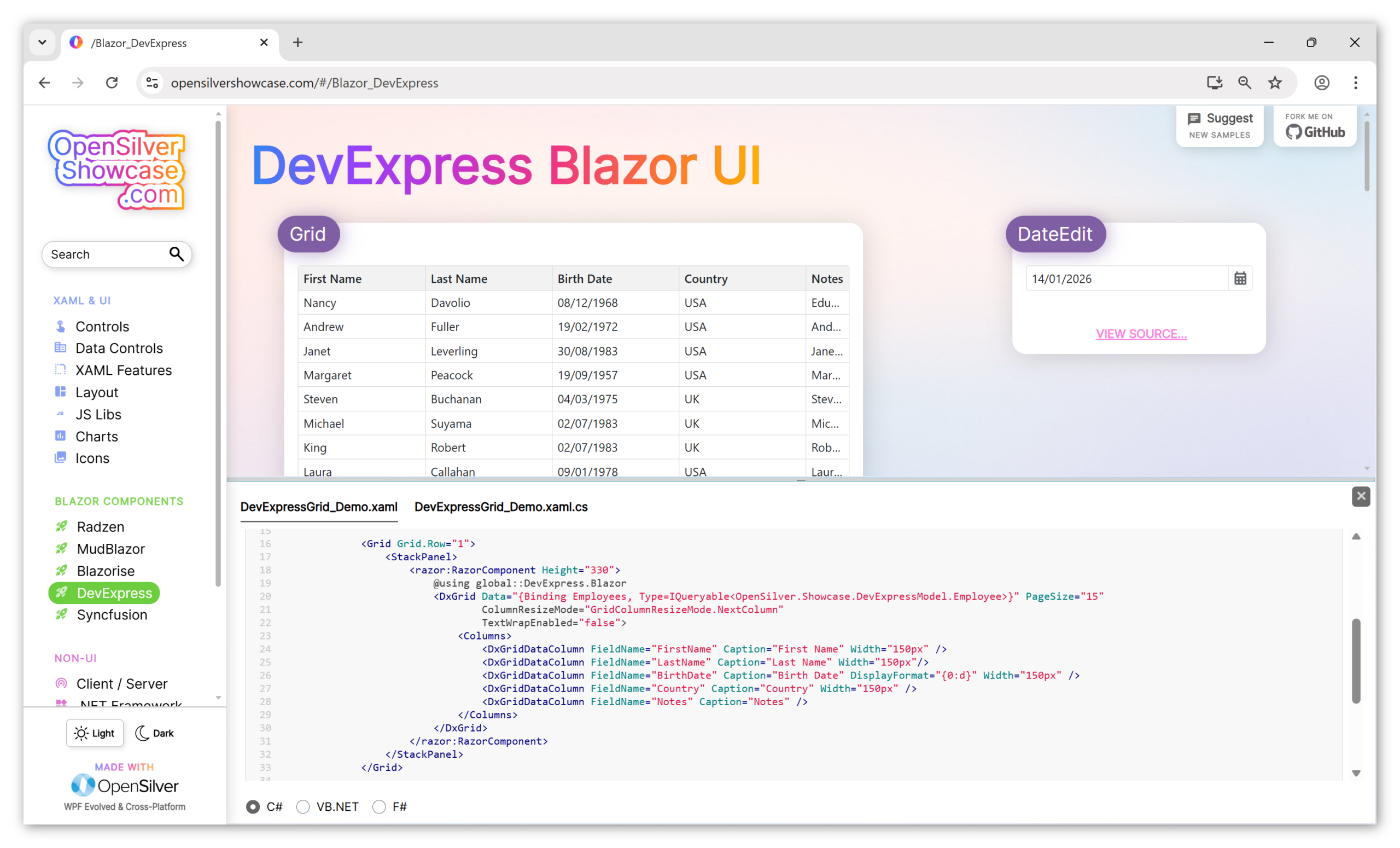
The Showcase itself is built with OpenSilver and demonstrates the cross-platform story: the same C#/XAML codebase running on web, iOS, and Android:
- Web: OpenSilverShowcase.com
- iOS: App Store
- Android: Google Play
Desktop deployment is supported via .NET MAUI Hybrid.
Getting Started
New to OpenSilver?
1. Install the OpenSilver extension for Visual Studio or VS Code. This gives you project templates and the XAML designer.
2. Create a new OpenSilver application using File → New Project → OpenSilver Application.
3. Add the Blazor package to your main project:
dotnet add package OpenSilver.Blazor
4. Update your project SDK in the main .csproj file:
<Project Sdk="Microsoft.NET.Sdk.Razor">
5. Initialize Blazor in Program.cs of your .Browser project:
Initializer.UseBlazorForOpenSilver(builder);
6. Add the namespace to your XAML and start using Blazor components:
<UserControl xmlns:razor="clr-namespace:OpenSilver.Blazor;assembly=OpenSilver.Blazor">
    <razor:RazorComponent>
        <h1>Hello from Blazor!</h1>
    </razor:RazorComponent>
</UserControl>
For 3rd-party libraries like Radzen or MudBlazor, follow their standard setup instructions.
Full details: Blazor Integration Documentation
Already have an OpenSilver project?
Skip to step 3 above. Just add the OpenSilver.Blazor package, update your SDK, initialize Blazor, and you’re ready to go.
Want a ready-to-run example?
Clone the OpenSilver.Blazor QuickStart repository:
git clone https://github.com/OpenSilver/OpenSilver_Blazor_QuickStart.git
Six progressive examples: inline Razor, data binding, external .razor files, editable data tables, Radzen DataGrid, and event handling.
Prefer to try OpenSilver online first?
XAML.io lets you build and run OpenSilver apps directly in your browser. No installation needed. (Note: Blazor component support in XAML.io coming soon.)
More in This Release
Blazor integration is the headline, but OpenSilver 3.3 includes much more.
.NET 10 and Visual Studio 2026
Full support for .NET 10 (released November 2025), C# 14, and Visual Studio 2026. OpenSilver stays current with the latest .NET platform.
Responsive Layouts Made Simple
The new Responsive markup extension makes adaptive UIs declarative:
<Border Width="{Responsive Mobile=150, Tablet=300, Desktop=500}"
        Margin="{Responsive Mobile='5', Desktop='20'}"
        Visibility="{Responsive Mobile=Collapsed, Desktop=Visible}"/>
Different values for different screen sizes, right in your XAML. No code-behind. No visual state managers.
WPF Compatibility Additions
Substantial progress on WPF compatibility:
- Commanding: Complete CommandManager, RoutedCommand, RoutedUICommand, CommandBinding, InputBinding, KeyGesture, MouseGesture
- Template Selectors: ContentTemplateSelector, ItemTemplateSelector, ItemContainerStyleSelector
- Preview Events: PreviewKeyDown, PreviewMouseDown, PreviewMouseMove, PreviewMouseWheel
- Lifecycle: BeginInit, EndInit, OnInitialized, IsInitialized
- Animation Control: PauseStoryboard, ResumeStoryboard, SeekStoryboard, StopStoryboard
- APIs: WeakEventManager, DependencyPropertyDescriptor, Visibility.Hidden, IsMouseOver, SetResourceReference, rewritten CollectionViewSource
Modern Layout Properties
Grid and StackPanel gain properties from WinUI and MAUI: BorderThickness, BorderBrush, Spacing, Padding, CornerRadius. Plus shorthand syntax for definitions:
<Grid RowDefinitions="Auto, *, 2*" ColumnDefinitions="200, *">Limitations
Design-time errors in Visual Studio
Razor code embedded inside XAML will currently show errors at design-time but compiles and runs correctly. Workarounds: wrap in CDATA, use separate .razor files, or filter to “Build Only” errors.
Language support
Blazor integration currently works with C# projects. VB.NET/F# projects can reference a separate C# class library containing the Razor files.
Set Build Action to Content
For separate .razor files, ensure the Build Action is set to Content in file properties.
Supported launchers
Blazor integration works with .Browser (most stable), .MauiHybrid, and .Simulator. Photino launcher is not yet supported.
Threading on MAUI/Simulator
When updating Blazor components from outside their normal lifecycle, use BlazorThread.BeginInvokeOnMainThread(...) for thread-safe UI updates.
Full details in the documentation.
Resources
Download:
- OpenSilver NuGet Package
- Visual Studio Extension
- VS Code Extension
- XAML.io (browser-based, no install)
Learn:
- Blazor Integration Docs
- OpenSilver Showcase
- Sample “OpenSilver Blazor QuickStart” (GitHub)
- OpenSilver Repo (GitHub)
Connect:
Migration Services:
OpenSilver is free and open-source under the MIT license. We’re excited to see what you build. Questions? Feedback? Contact us, reach out on GitHub or X/Twitter. And thank you to everyone who contributed to making this release possible!
Previous release: OpenSilver 3.2
It brings WPF Apps to iOS, Android, and Beyond via MAUI Hybrid:
Previous release: OpenSilver 3.2
It brings WPF Apps to iOS, Android, and Beyond via MAUI Hybrid:
Press Kit
(To Be Updated)
For media inquiries, please send an email to: Vasil Buraliev Media Relations at Userware vasil.buraliev@userware.dev
Press Release:
- MS Word format (.docx) : Press Release – OpenSilver v3.3.DOCX
- PDF format : Press Release – OpenSilver v3.3.PDF
High resolution logo (WEBP with Alpha):